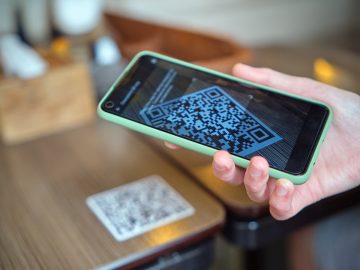
Whether on posters, invoices, or flyers — or as mobile tickets, digital business cards, or a means of payment — those little black and white squares are now everywhere — and extremely useful. Scanning QR codes allows you to access links, make transfers, download files or apps, and much more quickly and easily. Read on to learn how to scan QR codes with your iPhone, Android device, Windows PC, or Mac — and how to strengthen your smartphone’s protection with Avira Antivirus Security for Android or Avira Mobile Security for iOS.
What are QR codes?
QR stands for “Quick Response” and refers to a technology that allows data to be stored in a two-dimensional barcode and then read by a machine (like your smartphone). A QR code is made up of a square grid of black and white squares (called modules) that store encoded information. Unlike its one-dimensional relative, the traditional barcode, a QR code can hold significantly more data and features automatic error correction — allowing even damaged QR codes to be read reliably. A QR code can encode various types of data — numbers, letters, text, binary data, or special characters. Each of these types has its own encoding mode (numeric, alphanumeric, byte/binary, or Kanji).
How do QR codes work?
Typically, QR codes contain either URLs, text, or structured data such as contact information (vCards), calendar events, payment details, or Wi-Fi access details. A QR code scanner decodes this information and displays a notification via which a corresponding action can be triggered. For example, you can open websites, access locations, save contacts, automatically fill in payment details, or establish Wi-Fi connections without having to enter the data manually. Some codes also contain information used for validation, identification, or other purposes.
QR codes not only serve as an interface between the real and digital world but also as a practical link between computers and smartphones. That’s because QR codes can be scanned not only from posters, flyers, and menus but also from computer screens. For example, if you scan an app’s QR code on a website, when you tap the link you’ll be taken to your smartphone’s app store where you can install the app.
Whereas previously you needed a special app to scan QR codes, this feature now comes integrated into the camera app on newer smartphones. Some other apps also have their own QR code scanners, but these can only process certain QR codes for app-specific functions, such as banking apps. These QR codes can be read and partially recognized by the camera app, but further processing of the data is only possible within the respective app.
Which apps have a QR code scanner?
Pre-installed camera apps: Modern smartphone cameras can scan QR codes directly and understand the information they contain.
Google apps with Lens functionality: Some Google apps can also read QR codes thanks to their integrated image recognition functionality.
QR code scanner apps: Standalone scanner apps can often read not only QR codes but also other 2D codes and 1D barcodes. Some apps also include a QR code generator, allowing you to create your own QR codes.
Payment and banking apps: The QR code scanners of banking apps can read and process payment information via special QR codes. This allows users to scan QR codes from invoices to initiate transfers. Some payment apps, like PayPal and Bluecode, also support scan‑to‑pay: You simply scan a QR code on a card reader or in‑store display to complete the payment in the app.
Messaging and social media apps: With WhatsApp and Instagram, you can display contact or profile links as a QR code, which others can then scan using the camera app or the QR code scanner built into the app. Tapping the link opens a WhatsApp chat with the respective contact or the corresponding Instagram profile.
Loyalty and shopping apps: Some retailers’ apps offer a barcode and QR code scanner, allowing you to do a range of things like retrieving product information, activating offers, or participating in promotions. The Amazon app includes a barcode scanner that allows products to be scanned in a store and accessed online at Amazon, if available there.
Authenticator apps: These apps feature a built-in QR code scanner as QR codes are now typically the standard way to enable two factor authentication (2FA). Scanning the code then securely links your user account and the app.
Besides apps that scan QR codes, there are also apps that display or generate them. You can then use these codes in a range of ways, including as a mobile ticket for public transport or as a digital loyalty card for collecting points. The QR code serves as proof of authorization or means of identification, and contains all the information that’s needed.
Some apps also generate unique payment codes (QR codes, barcodes, or Aztec, codes) which you can use to pay for in-store purchases. Support differs country by country, but some popular services include PayPal, Alipay, and WeChat Pay internationally, Walmart Pay in the US, and Rewe Pay, PAYBACK PAY, and Bluecode in Germany and some other EU countries. To use this feature, you first need to link your loyalty or payment app to your current account. This type of mobile payment is now almost as common in some Asian countries as the Scan2Pay method where the customer scans the QR code, not the merchant. In Europe, however, it is not yet so widespread, which is why there are still few locations where this payment method is accepted.
How to scan QR codes with your smartphone or laptop
It’s easy to use the Camera app on your iPhone, iPad, or Android device — as well as using Google Lens or your Windows PC or Mac. Read on to learn how.
How to scan QR codes with an Android phone or tablet
- Open the Camera app and hold your device so the QR code is visible in the frame (you don’t need to take a photo, but you must be in the standard “Photo” mode).
- Tap the displayed message to access the content.
If your Android device has a Gallery app with QR code recognition, you can also take a photo of QR codes and access the content later. Otherwise, use an app with Google Lens to read photographed QR codes, as described in the next section.
How to scan QR codes with Google Lens
You can also scan QR codes with Google Lens — the AI-powered image analysis tool from Google. It recognizes and provides information on objects and text captured via the camera as well as in images on the internet, plus it can read QR codes — even on saved photos. The tool is integrated into the Google and Chrome apps and is also available as a standalone app offering advanced features.
- Google Lens app (only available for Android): Start the app and allow it access to the camera.
Google and Chrome apps: Start the app, tap the Lens icon (the camera with a dot in the middle) on the right side of the Google search field, and allow the app access to your camera.
Note: You need to be in the default “Search” mode, but don’t press the shutter button. - Point your device at the QR code.
- Tap the displayed message or shutter button to access the content.
If you’ve already taken a picture of a QR code, you can access its contents by tapping the Gallery icon next to the shutter button. You may need to grant the app access to your photo gallery first. If your phone has the Google app, you can open a photo in your Gallery app, tap the Share function, and then (depending on the device) select the Google app or Lens feature. The photo is now passed to the Google app to “scan”, meaning to read the QR code from the image.
The Google Photos app also includes Google Lens, although it doesn’t support live scanning. Instead, it can read QR codes in photos and screenshots stored in the app and display their content. To do this, simply tap the Lens icon at the bottom of the menu bar or access Google Lens via the more options icon (the icon with three dots) in the top right corner.
Google Lens is also built into the Camera app on the latest Google smartphones and is turned on by default. Although you don’t actually need Google Lens to scan QR codes — since the Camera app offers native support — it can be useful in other scenarios.
Incidentally, a comparable tool called Huawei AI Lens is available on Huawei smartphones.
How to scan QR codes with your iPhone or iPad
- If the feature is turned off: Open the Settings app on your iPhone or iPad, tap Camera, and set the toggle switch next to the Scan QR Codes option to on.
- Open the Camera app and position your iPhone or iPad so the QR code is within the frame (you don’t need to take a photo, but you must be in the standard “Photo” mode).
- Tap the displayed message to access the content.
By tapping the QR code icon next to the message, you can also access further options such as Share, Copy Link, or Add to Reading List.
Alternatively, you can also photograph the QR code and read it later by tapping and holding the photo. Depending on the content of the QR code, you’ll see a range of options in the context menu, including Open in Safari, Open in WhatsApp, Open in Instagram, Connect to Network, and View in App Store.
How to scan QR codes with your Windows PC or Mac
You’ll need a third-party app to scan a QR code with your Windows laptop or MacBook.
- Mac: Click the Apple icon in the top left corner and select App Store.
Windows: Click the start icon on the bottom left, enter Microsoft Store, and then click the best match search result for that app. - Search the store for QR code scanner and choose one.
- Install the QR code scanner and follow the on-screen instructions.
- Open the app and, if necessary, confirm the camera access request.
- Hold the QR code in front of your webcam and scan it.
- Click the displayed message to access the content.
If you’re not online, some QR code scanners allow you to save the link or take a photo of the QR code to access it later.
Different types of QR code
A QR code is a two-dimensional (2D) barcode. Unlike classic barcodes (1D barcodes), 2D codes can store information not only horizontally but also vertically, so they can encode more data.
Besides QR codes, there are other types of 2D code like the Aztec code, DataMatrix code, MaxiCode, DotCode, and PDF417 code. They differ not only in terms of design but also in terms of data capacity, the type of information they can carry, error correction performance, and minimum size of the individual code elements. While the QR code is optimized for broad, universal use and can store many different types of data, the other 2D codes are each only suitable for specific purposes and require different reading devices. The PDF417 code is the one you most frequently encounter in daily life since it features on boarding passes, driver’s licenses, and ID cards.
There are multiple QR code variants which differ in terms of the technology used. The QR Code Model 2 is the most widely used, and is standardized internationally. Thanks to its broad support by scanner apps, camera apps, and reading devices, it’s suitable for a wide variety of applications.
Model 1: The original version was developed in 1994 by the Japanese company Denso Wave for the Toyota Group.
Model 2: This improvement on Model 1 can encode even more information and offers improved error correction, meaning it can be read even if it’s distorted in some way such as due to it being printed on a curved surface. The following QR code types are based on it:
Micro QR code: Simplified, more compact version for small data sets.
rMQR code: Rectangular form of the micro-QR code for space-saving applications.
iQR code: Flexible variant with higher data density, which also allows rectangular shapes.
SQRC code: Security QR code with advanced functionality for encrypting data content.
Frame QR code: Version with a freely customizable center, framed by QR code modules.
Dynamic and static QR codes
Basically, there are two different types of QR code: Dynamic and static. In both cases, the data stored in the QR code cannot be changed once the code has been generated. The difference lies in whether it’s possible to change the target URL.
A static QR code contains either text, structured data, or URLs that are stored directly in the code and cannot be changed. If you want to change any of the encoded data, you need to generate a new QR code. This makes these QR codes ideal for company websites and other information that is not expected to change.
By contrast, a dynamic QR code contains an intermediate URL pointing to a server. This server acts as an intermediary and decides to which target URL the user is redirected. This allows the target URL to be adjusted afterwards without having to recreate the QR code. This makes dynamic QR codes great for marketing campaigns with changing content — plus they also allow QR code scans to be tracked since the server can accurately log when, from which device, and where the code was scanned.
In terms of the scan-to-pay process, a distinction is also made between static and dynamic QR codes, although the terms used here refer to something different. Static payment codes contain fixed, reusable payment information so the customer still has to manually enter the amount after scanning the QR code. In contrast, dynamic payment codes are generated for each transaction, meaning the amount to be paid is included automatically in the QR code.
How secure are QR codes?
In principle, QR codes are neither secure nor insecure as they only function as a means of transporting data, such as for links. That said, it isn’t apparent from the links where they lead or who they really originate from. And that’s exactly what some scammers take advantage of them to carry out quishing attacks, among others. These are a type of phishing attack where cybercriminals use QR codes instead of phishing links to direct users to fake websites to steal their data.
QR codes can direct you to malicious downloads that install malware on your device. As such, only scan QR codes from trusted sources. Always check the URL in the notification for unusual characters, domain names, or other inconsistencies. Also be careful with short links like bit.ly/xyz123, as you can’t tell straight away where you’ll be directed.
Tip: It’s easy to protect your smartphone from malware with Avira Antivirus Security. The free Android app includes a virus scanner and many other useful features. In addition, you can upgrade at any time to the Pro version and unlock additional features. This includes Web Protection to block malicious websites and quishing links. Web Protection is also included in the iOS app Avira Mobile Security Pro — plus you can upgrade the free version of the app at any time to enjoy this feature.
Google, Google Chrome, YouTube, and Android are registered trademarks of Google LLC.
Microsoft and Windows are registered trademarks of Microsoft Corporation.
Mac, MacBook, iPhone, and iPad are registered trademarks of Apple Inc.
Amazon is a registered trademark of Amazon Technologies, Inc.
PayPal is a registered trademark of PayPal, Inc.
Huawei is a registered trademark of Huawei Technologies Co., Ltd.