

Want to keep curious eyes from seeing your browsing history when you share your device — and wipe your digital traces from Google and other platforms? Then clearing your browsing and search history is a good idea. Read on to learn how to clear your browsing history in the most popular browsers on a variety of devices. Also discover how to erase your search history from search engines like Google and online services such as Amazon and YouTube. If you want to go one step further and prevent your browsing history from being saved in the first place and minimize tracking of what you do online, download Avira Secure Browser here — for enhanced privacy protection when surfing.
What’s the difference between your search history and your browsing history?
Your browsing history, or surfing history or just history, is a record of all the websites (URLs) you’ve visited — regardless of whether you used a search engine, entered the URL directly, or clicked a link in an email. Your browsing history is stored locally on your device in the browser’s user profile. It also includes search queries you entered into your search engine’s search box or your browser’s combined address and search bar. That’s because your search terms form part of the URL of the search results page.
Search engines and online services like YouTube and Amazon also store and process the search terms you enter, websites you visit, and content you view in their own search history. They do this either locally in your browser (using cookies) or in your user account on their servers, provided you’re logged in. This means your search queries, settings, and activities are linked to your account and not tied to a single device — allowing them to be synced across devices and accessed from different devices and browsers.
Our article dives into all these topics, plus there are some handy takeaways at the end of this post on why it’s a good idea to delete your browsing and search history.
How to clear your browsing history in a range of browsers
You’ll first learn how to clear your browsing history in different browsers on a variety of devices. In some cases, there are multiple ways to do this — and you can even delete individual websites from your history — but we’re going to focus on explaining the quickest way to clear your entire browsing history.
We’ll also reveal how you can use your browser’s private or incognito mode to prevent your browsing history and other browsing data from being stored in the first place (see our article on why you should also clear your incognito history and how to do that).
Note: If you’re logged in to a browser with your user account and have turned on cloud syncing, your browsing history may also be deleted on other devices (like your PC, smartphone, or tablet, etc.), depending on your sync settings.
Erase your browsing history in Google Chrome
Google Chrome is a Chromium-based web browser that comes pre-installed as the default browser on many Android devices. Check out our article if you’d like to know how to set Google Chrome as the default browser on your PC or Mac.
Tip: Google Chrome has an incognito mode for private browsing. To ensure neither your browsing history nor cookies — or any other such data — are saved when surfing, simply open a new incognito window via the Chrome menu.
To erase your browsing history in Chrome on your Mac, PC, Android device, or iPhone, follow these steps.
On your PC or Mac
- Open Google Chrome and click the three vertical dots on the top right to open the menu.
- Select History from the drop-down menu and then History again in the submenu that appears.
- You’ll now see your Chrome history. Click Delete browsing data (PC) or Clear browsing data (Mac) in the left sidebar (you’ll then be redirected to the “Privacy and security” section of the settings).
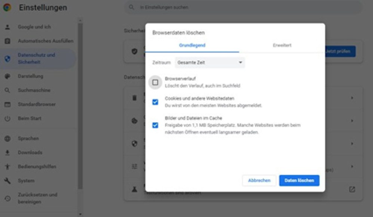
- Now, in the pop-up window, select the time range and browser data you want to erase. In addition to your browsing history, you can also delete your download history, cookies and other site data, cached images and files, and much more (you’ll find it under the “Advanced” tab on a Mac).
- Now click Delete data (PC)/Clear data (Mac).

On Android devices or iPhone
- Open the Chrome app on your Android device or iPhone.
- Tap the three dots in the top or bottom right corner to open the menu.
- Now select History and then tap Clear browsing data (Android) or Delete browsing data (iPhone).
- Now select a time range and choose if you want to delete additional data besides your browsing history.
- Now tap Clear data (Android) or Delete data (iPhone).
Remove your browsing history in Microsoft Edge
Microsoft Edge is also a Chromium-based web browser and is installed as the default browser on PCs running Windows 10 or 11.
Tip: In Edge’s settings under “Privacy, search, and services”, you can set which browsing data is removed when you close your browser — including your browsing history.
Alternatively, you can also open a “New InPrivate window” in the Edge menu to prevent your browsing history from being saved while surfing.
To remove your browsing history in Edge on your Mac, PC, Android device, or iPhone, follow these steps.
On your PC or Mac
- Open Microsoft Edge and click the three horizontal dots on the top right to open the menu.
- Select History from the drop-down menu. Click More options (the three horizontal dots in the History pane), followed by Open history page.
- You will now see your Edge history. Click Delete browsing data (PC) or Clear Browsing Data (Mac) in the top right corner (on Windows, you’ll be redirected to the settings in the “Privacy, search, and services” section).
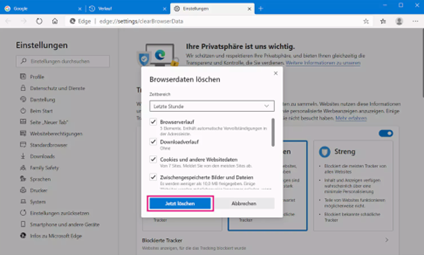
- Now, in the pop-up, select the time range and types of browsing data you want to delete, such as your browsing history, download history, cookies and other site data, cached images and files, passwords, and autofill form data.
- Click Clear now.

On Android devices or iPhone
- Open Microsoft Edge and click the three horizontal lines on the bottom right to open the menu.
- Now select History.
- Tap the trash can icon in the top right corner, then select browsing history and any other browsing data.
- Tap Clear data (Android) or Delete data (iPhone).
Delete your browsing history in Safari
The Safari browser is included as the default browser on all Apple devices such as Macs, iPhones, and iPads.
Note: When deleting your Safari browsing history, please note that this process will also remove associated website data. If you only want to delete website data — and not your browsing history — you can do this on your Mac in your Safari settings under “Privacy” and on your iPhone in your Safari settings under “Advanced”. However, you can’t select data based on type (e.g. only cookies or only cached content).
Tip: You can also browse privately with Safari, preventing your browsing history, cookies, and temporary data from being saved. To do that, open Safari and click File in the app menu bar at the top of your Mac’s screen. Select New Private Window and you’re good to go.
To delete your browsing history in Safari on your Mac, iPhone, or iPad, follow these steps.
On your Mac
- Open Safari and click Safari in the menu bar at the top of your Mac’s screen (to the right of the Apple icon).
- Now choose Clear History… from the drop-down menu.
- A dialog box will open where you can select a particular time range or “all history”.
- Then click Clear History.
On your iPhone or iPad
- Open the Safari app and tap the book icon (bookmark) in the bottom right corner.
- Tap the clock icon (history) followed by the three horizontal dots at the top, then tap Clear.
- Now select the timeframe or tap All history.
- Finally, tap Clear History.
Clear your browsing history in Mozilla Firefox
Mozilla Firefox is a free, in other words open-source, browser from the Mozilla project.
Tip: In your Firefox settings, under “Privacy & Security” in the “History” section, you can configure Firefox so it either never remembers your browsing history or uses custom history settings. You can also turn on the feature “Clear history when Firefox closes” there.
Alternatively, you can also open a new private window in the Firefox menu. If you do, Firefox won’t save your browser history or other data while you’re surfing.
To delete your browsing history in Firefox on your Mac, PC, Android device, or iPhone, follow these steps.
On your PC or Mac
- Open Mozilla Firefox and click the three horizontal lines on the top right to open the menu.
- Select History from the drop-down menu and then Clear recent history… (PC) or Clear Recent History… (Mac).
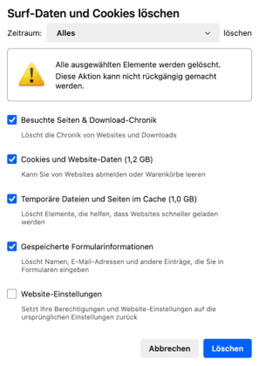
(To access the history overview, click Manage history at the very bottom instead.) - Now, in the pop-up window, select the time range and browsing data you want to delete. To delete your browsing history, check the box next to “Browsing & download history”. Here you can also delete cookies and site data, temporary files and cached pages, saved form info, and site settings.
- Click Clear (PC) or Clear Now (Mac).

On Android devices or iPhone
- Open the Firefox app and tap the three horizontal dots on the top right (Android) or three dots on the bottom right (iPhone) to open the menu.
- Now select History.
- Tap the trash can icon in the bottom left or top right corner and select the desired time period.
- Depending on the version, your browser history will be deleted either the moment you make your selection or after tapping Delete.
Delete your browsing history in Avira Secure Browser
Avira Secure Browser is a Chromium-based web browser designed specifically to make your browsing experience safer and more private.
Tip: You can enter “Private Mode” in the “Security & Privacy Center” or open a “New Private Mode Window” from the menu to prevent your browsing history and other browsing data from being saved while surfing. By the way, this mode offers enhanced privacy protection, with Privacy Guard and Web Protection turned on by default, blocking ads and trackers as well as malicious websites and downloads.
To view your browsing history in Avira Secure Browser on your Mac or PC, proceed as follows.
- Open Avira Secure Browser and click the three vertical dots on the top right to open the menu.
- Select History from the drop-down menu, followed by History once again.
- You will now see your Avira Secure Browser history. Click Privacy Cleaner on the left in the sidebar (you’ll be redirected to the settings in the “Privacy and security” section).
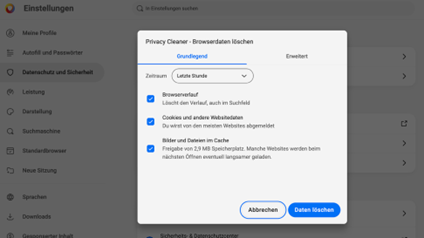
- Now, in the Privacy Cleaner pop-up window, select the time range and browsing data you want to delete. In addition to browsing history, you can select cookies and other site data, cached images and files, and download history.
- Now click Delete from this device (PC)/Clear browsing data (Mac).

How to clear your search history in search engines & other online services
You’ll need to be logged in to delete your search history from some online services like Google, Amazon, and YouTube. That’s because those platforms store your activity data and settings in your user account on their servers, allowing you to access and make changes from different devices and browsers. Since these user accounts also store data on your other online activities in addition to your search history, the search history is referred to as “history” in Google and YouTube, and “browsing history” in Amazon.
With Bing and Yahoo, however, your search history is stored in your account when you’re logged in, and in your browser (via cookies) when you aren’t.
Wipe your Google search history
- Open Google, click the profile picture in the top right corner, and log in to your Google account.
- Click your profile picture and then select Manage your Google Account.
- Click Data & privacy in the left sidebar.
- Scroll down to the “History settings” section (under “Things you’ve done and places you’ve been”) and click My Activity.
- You can now see your Google activity (search queries, pages visited, YouTube videos watched, and so on). Click Delete activity by on the right above the activity list.
- Now select the desired time range in the pop-up (your history will be deleted straight away) or click All time and then select which activities you want to delete (such as Help, Image Search, Search, or YouTube). Then click Next.
- To confirm, click Delete.
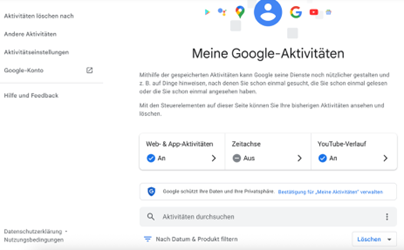

Tip: Here you’ll also find the activity settings for your Web & App Activity, Timeline (location history), and your YouTube History. You can turn off or customize these activities as needed to control what data Google stores in the future.
Delete your Microsoft Bing search history
Note: Bing stores your search history in your user account when logged in and locally in the browser when you aren’t. So if you want your settings and changes to be saved in your account, log in to Bing.
- Go to Bing, click Sign in at the top, and log in to Bing with your Microsoft account (optional).
- Click the three lines in the top right corner to open the menu, then select Search history.
- You will now see your Bing search history. In the right-hand sidebar, under “Manage or clear your search history”, click Clear all.
- To confirm, click Clear all in the pop-up.
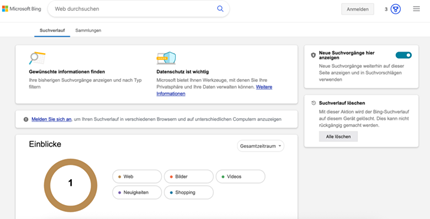

Tip: Next to “Show new searches here”, you can also turn off your search history. Once you do, new activities will no longer be displayed in your search history and used for search queries.
If you’re logged in to Bing with your Microsoft account, you can click Go to dashboard under “Manage or clear your search history” to customize further settings. You will then be redirected to your Microsoft account, where, after logging in, you can do the following and more:
- Manage all collected activity data from your Microsoft account
- View and delete your search history, browsing history, location history, and voice activity, etc. (from Edge and Bing)
- Selectively turn off history storage for other Microsoft services
- Set an auto-delete period
Clear your Yahoo! search history
Note: Yahoo also stores your search history in your user account when logged in and locally in the browser when you aren’t. So if you want your settings and changes to be saved in your account, log in to the Yahoo! portal.
- Open the Yahoo! portal, click Sign in on the top right, and log in to your Yahoo! account (optional). You can also access Yahoo Search and skip straight to step 3 without logging in.
- Enter a term into the Yahoo search box and press the Enter key. You’ll be redirected to Yahoo Search and will now see your search results.
- Click the grid icon in the top right corner and then select Settings from the drop-down menu.
- Click Search history in the left sidebar.
- You will now see your search history. Under your search queries, click Clear history.
- To confirm, click Delete in the pop-up.
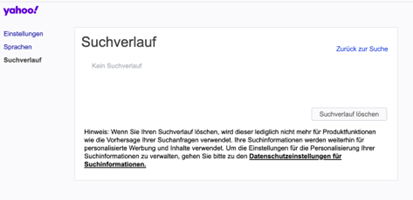

Tip: You can also stop your search data being used to personalize results here. To do that, click the link privacy setting for search information below your search history. You’ll be redirected to the privacy settings where you can toggle on “Don’t allow”. Your search queries will then no longer be used to personalize content and ads, but will still be stored. Unfortunately, Yahoo doesn’t offer a way to turn off the search history.
Clear your YouTube search history
- Go to YouTube, click your profile picture in the top right corner, and log in using your Google account.
- In the left sidebar, under “You”, click History.
- Here you’ll see everything you’ve watched, which you can clear by clicking Clear all watch history in the right sidebar.
- To delete your search history as well, click Manage all history in the right sidebar.
- You’ll now see your entire YouTube history. Click DELETE on the right above the list.
- Now select the desired time range in the pop-up (the history will be deleted straight away) or click Delete all time.
- To confirm, click Delete.
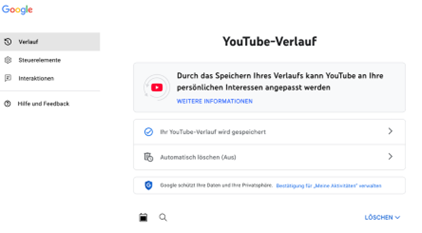

Tip: You can also customize further settings here:
- Set an auto-delete period
- Turn off your YouTube history (watched videos and search queries will not be saved)
- Turn off “Include your searches on YouTube” (by removing the checkmark)
Clear your Amazon search history
- Open Amazon, click Hello, sign in in the top right corner, and log in to your Amazon account.
- Hover your mouse pointer over “Hello, [your user name] Account & Lists” at the top and select My Account from the dropdown menu.
- On the “Your Account” page, scroll to the very bottom and click View or edit your browsing history next to “Your browsing history”.
- You’ll now see your Amazon browsing history. Click the gear icon (settings) in the top right corner and then choose Remove items in the pop-up.
- You’ll receive a confirmation that all items have been removed.
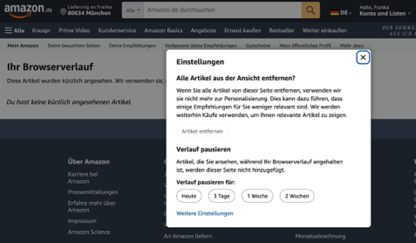

Tip: You can also pause your browsing history for different time periods here. Additionally, you can turn off your browsing history completely by clicking More settings at the bottom. Your search queries and viewed items will no longer be displayed or saved and they won’t be used to personalize results.
Why should I delete my browsing and search history?
Good reasons to delete your browsing history
Deleting your browsing history prevents others who use your device from seeing which websites you’ve visited and the search queries you’ve entered into your browser. At the same time, it makes it more difficult for potential attackers to use certain programs such as spyware or malicious browser extensions to access your browsing history and spy on your online activities.
Handy hint: When you visit websites, browsers store various data locally on your device to load content faster on future visits and to store your settings. This includes both information generated by the browser itself — such as the browsing history — as well as browsing data originating from websites, such as cookies, cache files, login data, or content from local storage.
To fix performance issues, you need to do more than just delete your browsing history since this only removes the list of websites you’ve visited. To resolve loading errors, display issues, or page-loading delays, you should also clear your browser cache. This is because cached data and website information are stored there, which can be outdated or corrupted and cause issues. To minimize online tracking, it’s also a good idea to delete cookies.
Some browsers like Google Chrome, Mozilla Firefox, and Microsoft Edge, allow you to select individual categories — such as browsing history, cookies, or cache — when deleting your browsing data. In Safari, though, clicking “Clear History” deletes both your browsing history and website data, without you being able to choose one or the other.
Good reasons to delete your search history
Anyone who shares a user account with others (such as family members or partners) should also delete sensitive search queries and history data in those accounts. Search engines like Google, Bing, and Yahoo — as well as online services like YouTube and Amazon — store a whole bunch of data in your search history along with your search queries, including the websites you visited and videos or articles you viewed.
Based on this data, you may also be shown similar products or videos, as well as personalized search results, ads, and recommendations. That said, you can prevent all this really easily simply by turning off and deleting your search history.
Should one of your accounts, like your Amazon account, get hacked, attackers will only be able to get their hands on a limited amount of data, making it difficult for them to exploit it for social engineering or phishing attacks.
If you want to learn more, check out our article on what information Google collects about you.
How can you enhance your privacy when surfing?
You can strengthen the protection of both your local and online privacy as well as minimize personalized ads and recommendations by deleting your browsing and search history. That said, these measures don’t protect against online tracking by third-party providers. Ad networks and the websites you visited can continue to harvest data about your online activity via cookies and browser-fingerprinting techniques.
That’s why we recommend Avira Secure Browser, which, in addition to enhanced privacy safeguards, has many other protection features. These include, among others:
- Anti-Tracking and Anti-Fingerprinting: Avira Secure Browser helps you block tracking cookies and stop browser fingerprinting.
- Private Mode: When browsing in this mode, neither browser history, cookies, nor other website data are saved.
- Web Protection and Extension Guard: You can block malicious websites, infected downloads, unsafe browser extensions, and phishing attacks thanks to these features.
- Ad Blocker: You can choose from three levels of ad blocking: Only disruptive and malicious ads; disruptive and malicious, plus social media ads; or all ads entirely.
- No data harvesting: Unlike Google Chrome or Microsoft Edge, Avira Secure Browser doesn’t harvest user data or create a user profile.
All trademarks and product names mentioned are the property of their respective owners.
Google, Google Chrome, YouTube, and Android are registered trademarks of Google LLC.
Microsoft, Microsoft Edge, and Bing are registered trademarks of Microsoft Corporation.
Mozilla Firefox is a registered trademark of the Mozilla Foundation.
Safari, Mac, iPhone, and iPad are registered trademarks of Apple Inc.
Yahoo is a registered trademark of Yahoo Inc.
Amazon is a registered trademark of Amazon Technologies, Inc.